How to make Chrome read a page aloud (3 ways)
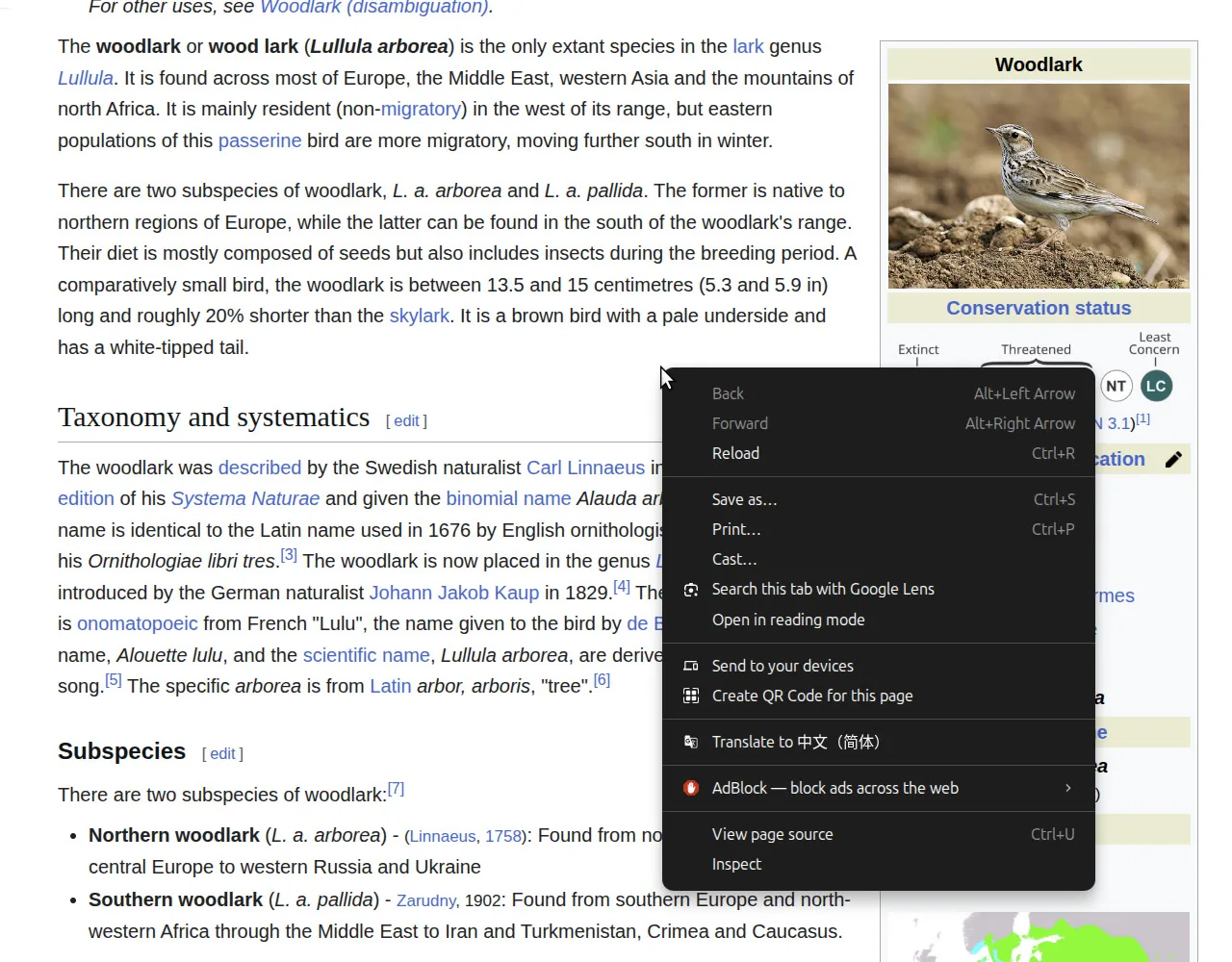
The fastest answer: right-click the page, choose "Open in reading mode," and press the play button in the toolbar that appears. Chrome on desktop can read to you out of the box now — no extension, no setup. That's genuinely good news, and for a paragraph here and there it's all you need. Below are the exact steps, plus two more ways to have Chrome read aloud — your operating system's reader, and extensions — with an honest account of where each one stops being enough.
Way 1: Chrome's built-in reading mode playback
- Right-click anywhere on the page and choose "Open in reading mode." The same thing lives under the ⋮ menu → More tools → Reading mode, and on the keyboard as Alt+Shift+R. (Article-style pages work best; reading mode has little to show on image-heavy pages or login screens.)
- Press the play button in the toolbar at the top right of reading mode.
- Adjust as it reads: the same toolbar has previous/next arrows and a speed control. The voice is a big step up from the robotic screen readers of a few years ago.
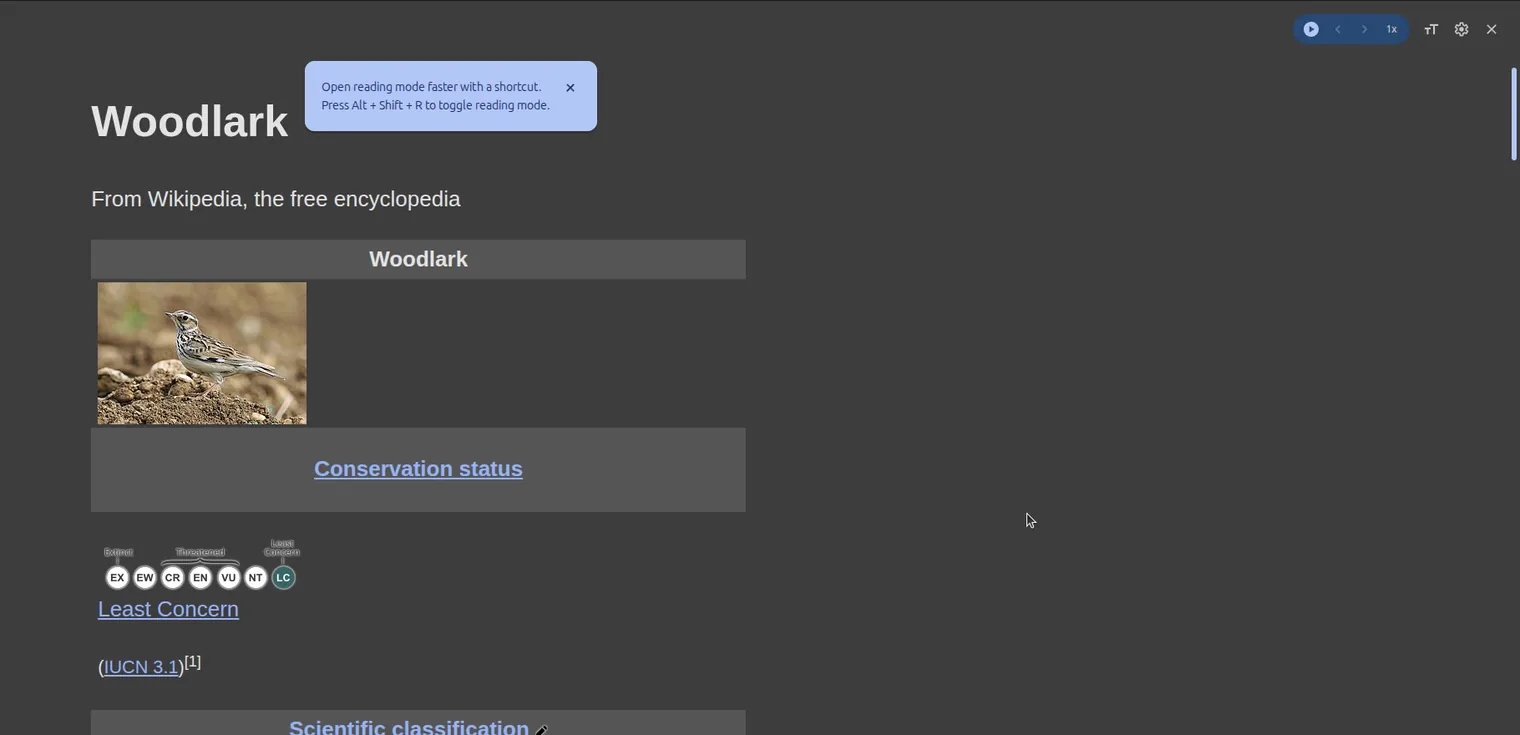
What it can't do, honestly listed: it won't read PDFs or e-books, it doesn't remember where you stopped, there's no summary, the voice selection is limited, and on pages where Chrome can't find clean text the option simply doesn't appear. It also reads the reading-mode text — close the view and playback goes with it. For occasional listening, none of that matters. For a daily reading habit, all of it does.
If your Chrome shows "Listen to this page"
Google is also rolling out a one-step version: a "Listen to this page" item directly in the right-click and three-dot menus, with a media bar at the bottom of the window. Same engine, one step shorter — if you see it, use it. If you don't (the rollout is gradual; our own up-to-date Chrome doesn't have it yet), the reading-mode route above is the same feature with one extra click.
On your phone
Chrome on Android has had "Listen to this page" longest — same three-dot menu, and playback keeps going with the screen off, which makes it a legitimate commute tool. On iOS, Chrome doesn't offer it; use Safari's Listen to Page, the iOS Spoken Content gesture, or a reader app.
If "Listen to this page" isn't there
Three things to check, in order. Update Chrome — and know that "Listen to this page" is a gradual rollout, so reading mode may be your only path for now. Check the page type — Chrome hides the option on image-heavy pages, login screens, and sites that block text extraction. Try Reading Mode — sometimes it can parse a page the menu item refuses. If none of that works, an extension that does its own content detection usually reads the page anyway.
Way 2: let your operating system read anything on screen
Every OS ships a reader that works in Chrome and everywhere else, and it's the answer to "make my computer read to me" in the broadest sense:
- Windows: Narrator — press Win+Ctrl+Enter. Reads whatever has focus, everywhere.
- macOS: Spoken Content — enable it under System Settings → Accessibility, then Option+Esc speaks the selection.
- ChromeOS: Select-to-Speak — press Search+S or tap the icon, then drag over what you want read.
These are accessibility tools first: totally reliable, free, and everywhere — but they read literally what you point them at, in a system voice, with no notion of "the article."
Way 3: an extension, when you want it to read like a person
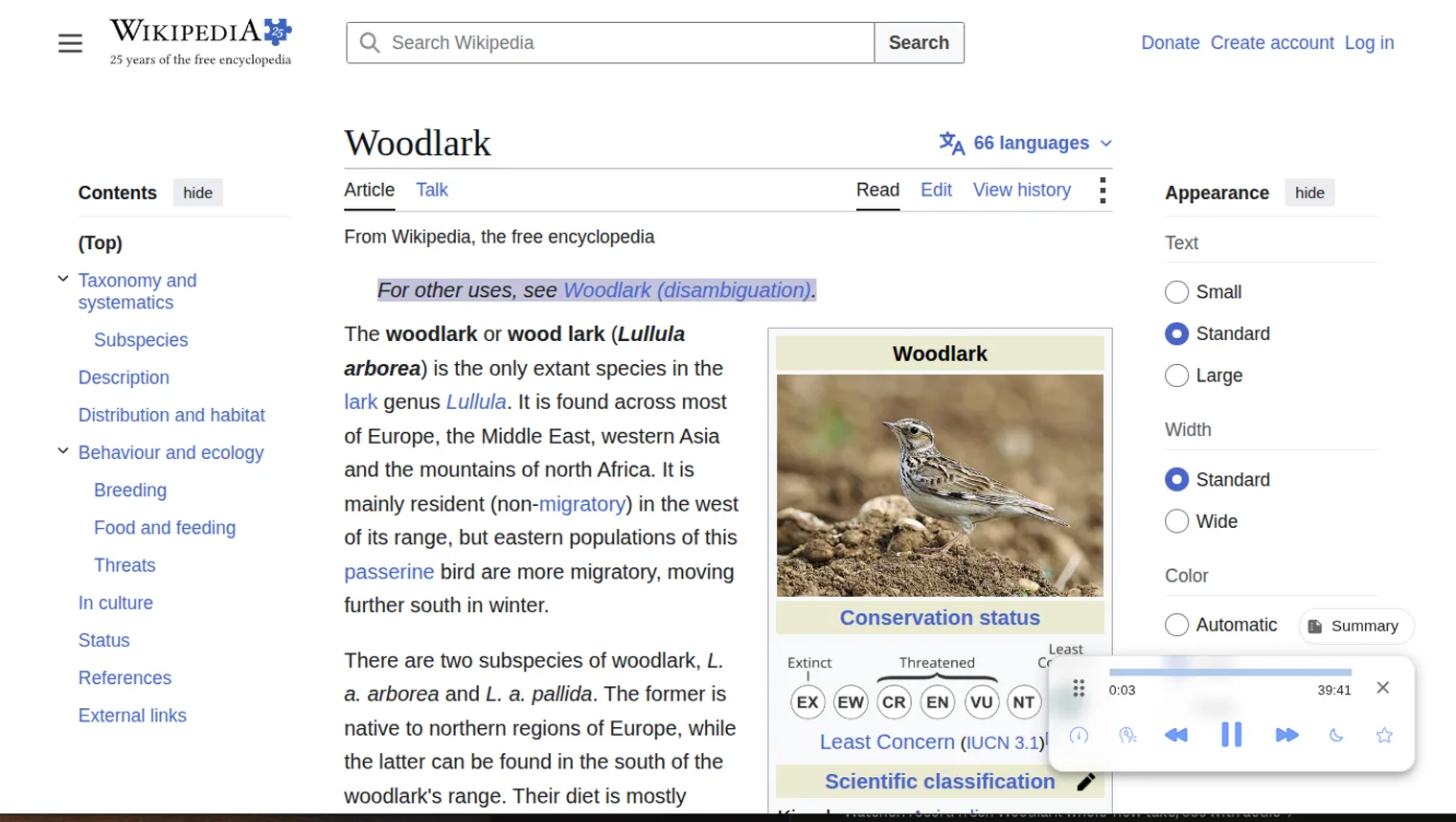
The built-in options narrate. Extensions are for when you want more than narration: natural neural voices, a moving highlight that follows the voice, a memory of where you stopped, PDFs and EPUBs, and summaries before you commit to a long listen. We make Lullula, which does exactly that list — install, open an article, press play; you need no account to start, and a free one keeps your place. If you'd rather have free and open source with your browser's voices, Read Aloud is the honest alternative — our full comparison of seven options names who wins each lane.
Which should you use?
An occasional paragraph → the built-in "Listen to this page." An accessibility need that spans every app → your OS reader. A reading list you actually intend to get through — articles, papers, books, on your terms → an extension. (And if you're in Edge rather than Chrome, its built-in reader is stronger than Chrome's — here's that comparison.)
Frequently asked questions
Does Chrome have text to speech built in?
Yes — since mid-2026 on desktop. "Listen to this page" lives in the right-click and three-dot menus, with a bottom media bar for play/pause, 10-second skips, and speed. Chrome on Android has had it longer.
Why doesn't "Listen to this page" appear on some sites?
Chrome hides it on pages it can't extract clean text from — image-heavy layouts, login screens, and sites that block extraction. Extensions that do their own content detection can usually still read those pages.
Can Chrome read PDFs aloud?
Not with the built-in feature — it's web pages only. For PDFs you need an extension; here's the full how-to, including what to expect from a scanned PDF.
Is there a keyboard shortcut?
Alt+Shift+R toggles reading mode, where the play button lives. The OS readers have shortcuts too: Win+Ctrl+Enter for Narrator, Option+Esc for macOS Spoken Content once enabled.